
ChartCodex · Support
Page address: www.nuvestudios.io/chartcodex/support
Common questions
The questions we expect most. If yours isn't here, the form at the bottom of the page reaches us directly. For MIDI questions, tell us which controller or modeler you use.
Settings → Add demo songs puts two charts and a setlist in your library. Songs → a song shows the chart; tap any bar or section to edit it. Setlists → ▶ opens the stage view. The MIDI tab's Monitor logs every message even with nothing connected.
Plug it into the USB-C port with a cable that carries data. Open MIDI → Send to: the device appears in the list; tick it. If it does not appear, tap Rescan, try another cable, or check that the device is in a MIDI-over-USB mode; some need a setting or a powered hub.
For Bluetooth MIDI, tap Pair a Bluetooth device… on the same screen and connect the pedal or keyboard there; iOS has no system screen for this.
Check, in order: MIDI on is switched on (the stage view's pill says ARMED); the device is ticked under MIDI → Send to; the song has Send on song load enabled in Song info & MIDI.
MIDI → Send to → Test should make the device change preset. If it lands one preset off, see the next answer.
Some devices count programs from 1; ChartCodex sends the raw MIDI value 0 to 127. If your device shows preset 13 when you asked for 12, enter 11.
MIDI → Tempo. Send the tempo as MIDI Clock sends a short burst of clock after each load, so the device keeps the tempo; continuous clock and Start/Stop are under Advanced. Tap the tempo for the device sends a CC at the beat interval; set the CC number from your device's manual.
6/8 songs with the tempo counted in dotted quarters send the right clock.
MIDI → MIDI Map: pick your foot controller, tap Set next to Next song or Previous song, then press the switch. Last press shows what the app heard. The switch has to send a CC.
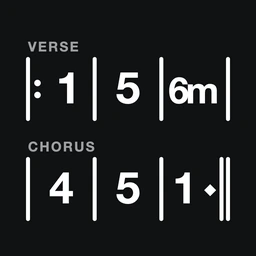
Songs → + creates the song (title, key, BPM, time). Add section, pick a name and a bar count, then use the keypad: 1 to 7 for chords, ♭ ♯ m 7 maj7 sus / for the quality, the beat grid to place a chord on a beat. Or switch to Type and write 1 5 6m 4 (5 6m) 1! 5^. The full cheat sheet is in Settings.
The 1 / C button on a chart flips between numbers and chord names, spelled for the key: in C, 1 2 6 3 reads C Dm Am Em and 7 reads B°; in a minor key 1, 4 and 5 are minor. Anything you type (6maj7, ♭6, 2 7) is spelled as written. Transposing keeps the numbers and moves the names.
⋯ → Share song, or the share button in a setlist, sends a small .chartcodex file by AirDrop, Messages or Mail. The other player taps it and imports. Share the same song again and their copy is updated. Your MIDI device settings are never included.
⋯ → PDF on any song prints the chart as it appears on screen.
Everything is saved on your device as you go, in the app's own Documents folder, so it is included in your normal device backup. Settings → Export library saves everything as one file you can import on another device.
Deleting the app deletes its local data. Export first.
Panic, at the bottom of the MIDI tab, stops the clock and sends all notes off on every channel. The stage view has it too.
Contact
Tell us what happened and we'll get back to you by email. Your device, iOS version and the MIDI gear you use help us reproduce it.